Home > Tiltify Integration
Table of Contents
Latest Video
Introduction
This is a detailed overview of the Tiltify Integration Extension for Streamer.Bot. The purpose of this extension is to serve as a foundation for streamers to connect their Streamer.Bot client to Tiltify and to have their own custom actions be triggered by donations to their Tiltify charity campaign.
Requirements
- Tiltify Account - User will need a Tiltify account in order to gain the necessary access to Tiltify.
- Tiltify Campaign - User must have an active Tiltify campaign in order for the extension to work properly.
Download Code
Installation
In the Streamer.Bot client, select the Import option in the top menu. Drag the downloaded Tiltify-StreamerBot Integration v3.2 file into the Import String field. If done correctly, the Import Actions window should match the following image (Figure 1).
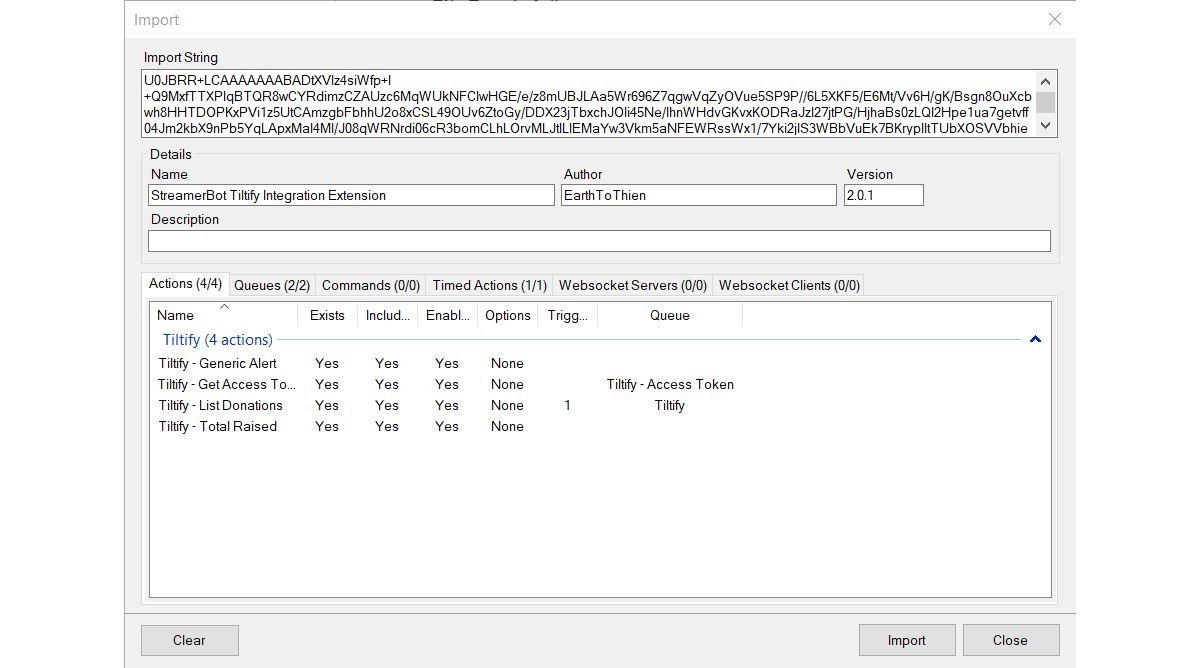
After importing the extension, the following items should appear in the Streamer.Bot client under the corresponding tabs:
- Actions Tab
- Tiltify - 01 - Setup
- Tiltify - 02 - Get Access Token
- Tiltify - 03 - List Donations
- Tiltify - 04 - Total Raised
- Queues Tab
- Tiltify - Access Token
- Tiltify
- Timed Actions Tab
- Tiltify - Donations
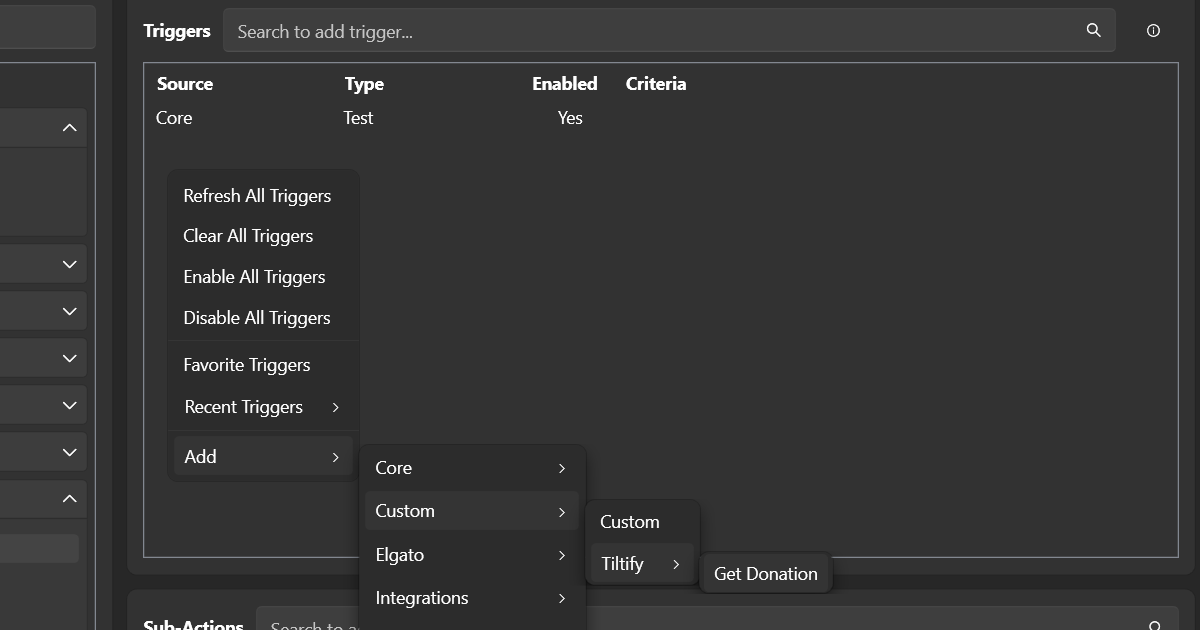
After importing the Streamer.Bot Tiltify extension, the Streamer.Bot client needs to be restarted in order to load a custom trigger. After re-opening the client, right click in the Triggers window to navigate through the following menu path: Add > Custom > Tiltify (Figure 2). If Get Donation appears, the extension has been properly installed and ready to be configured.
Configuration
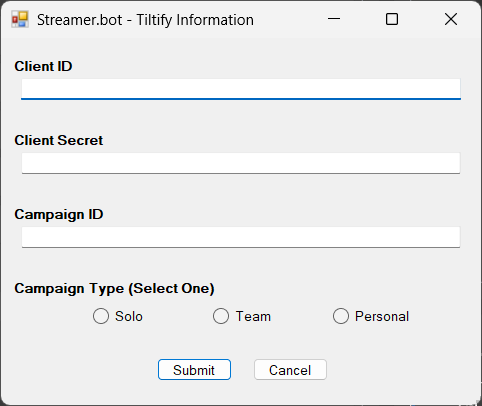
To configure the Streamer.Bot Tiltify extension, click on the Setup action, right click on the Test trigger, and select the Test Trigger option. A new window should appear as shown in Figure 3. This new window may appear behind your Streamer.Bot client
A Tiltify account is required in order to acquire a Client ID and Client Secret. From the Tiltify dashboard, access the Developer Hub and create an application. The Redirect URI field needs to be populated in order to create an application but is not required for the extension to function. For this, http://localhost is used as a placeholder as shown in Figure 4.
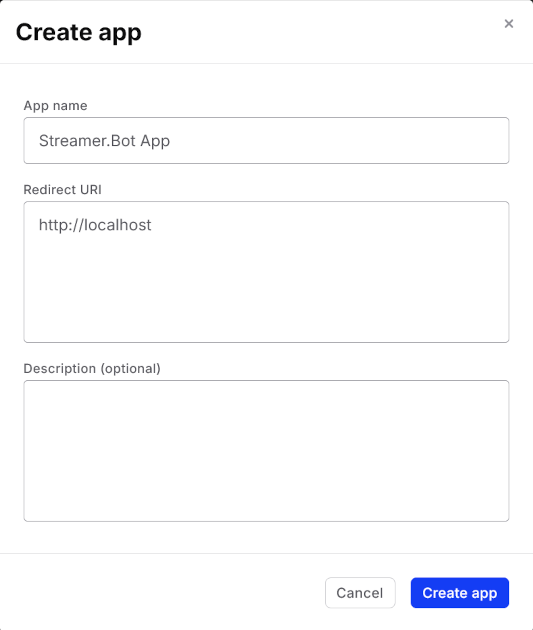
http://localhost can be used as a place holder.After creating an app, a notification will appear, indicating that the app was successfully made. Further down the page, there is a blurred section called "Application keys" that will provide the Client ID and Client Secret. Copy this information into their corresponding fields of the Streamer.Bot setup window (Figure 5).
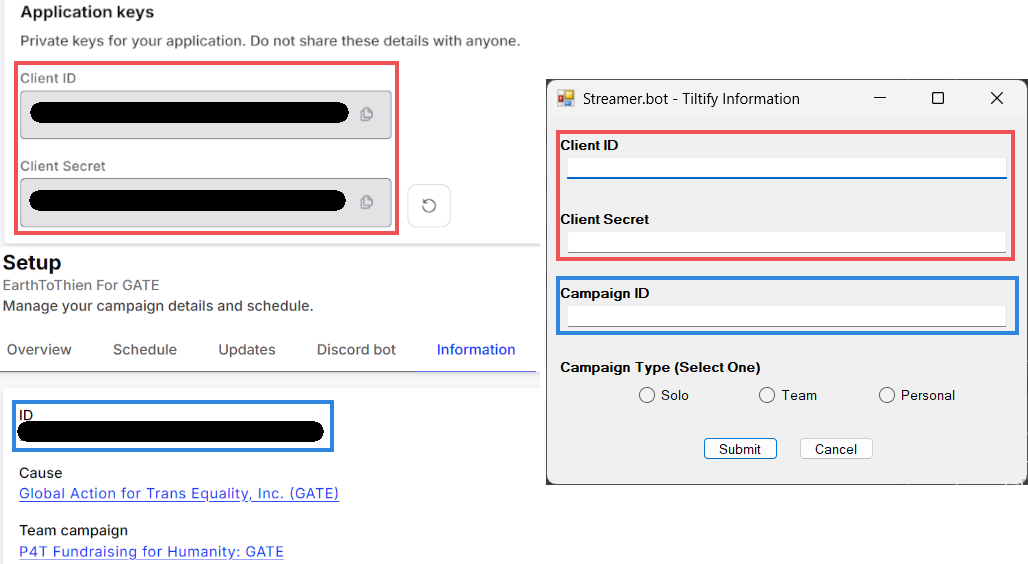
This extension also requires a published and active Tiltify charity campaign. From the Tiltify campaign dashboard, the Campaign ID can be found under the information tab of Setup (Figure 5).
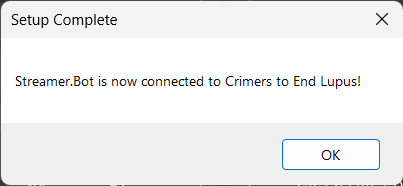
Finally, a campaign type must be selected (Solo, Team, or Personal). Each type corresponds the type of Tiltify campaign you currently have active, and only one type may be selected for per installation of the extension. This option determines what endpoints are used to send requests to Tiltify. Once you confirm all fields are populated correctly and click submit, a new window will appear confirming that you are successfully connected to your campaign. The name of your campaign will appear in this new window (Figure 6).
List Donations
The List Donations action serves as the source for all donation alerts. There is a repeating timer called Tiltify - List Donations that serves as the trigger for the List Donations action. This timer can be adjusted in the Streamer.Bot client under Services > Timers and is defaulted at 2-second intervals. When importing the extension, this trigger is disabled by default and needs to be enabled in order to begin polling.
With each trigger, the List Donations action polls Tiltify for the latest donation data from the current connected Tiltify campaign. When a new donation is detected, the arguments listed in Table 1 will be sent through custom Get Donation trigger. These arguments may be used in your actions for your custom alerts and stream interactions.
| Argument | Type | Description |
|---|---|---|
donationId |
String | Unique identifier assigned to each donation to the Tiltify campaign. This argument is used by the extension to determine whether or not there is a new donation to the Tiltify campaign. The last five donationId are saved and used as reference for new donations. |
donationDate |
String | Date and time (UTC) of when donation occurs. |
donorName |
String | Name provided with the donation to the Tiltify campaign. |
donorAmount |
Decimal | Donation amount (USD) made to the Tiltify campaign. |
donorAmount.String |
String | donorAmount argument as a String. Used to display the donation amount in text-based outputs such as Send Message to Channel or Set GDI Text for OBS. |
donorComment |
String | Message that donor included with the donation to the Tiltify campaign. |
donorRewards |
List<String> | List of reward IDs of the rewards claimed with each donation to the Tiltify campaign. Each reward created for the Tiltify campaign is assigned a unique ID and appears in the data when claimed with each donation. |
Alert Example
Alert actions are triggered by the custom Get Donation trigger. When activated, the action will have access to all the arguments generated by the List Donations action. Creating alerts with this extension follows the same logic and process as any alerts made for other platforms with Streamer.Bot. This section covers how to create a simple chat donation alert.
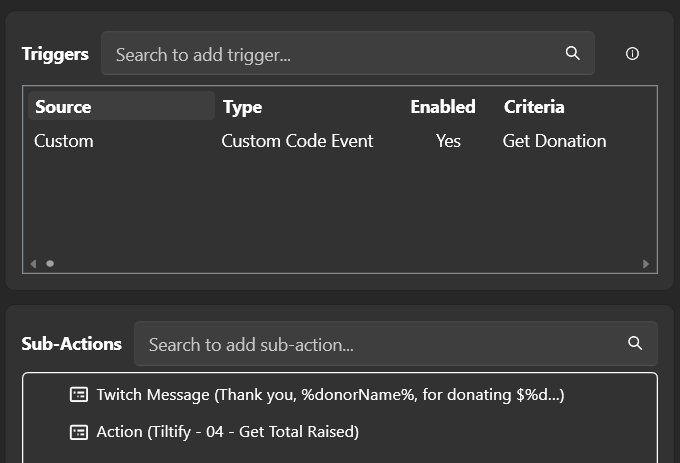
In the Trigger window for your action, select the Get Donation trigger. This is so that when a new donation is detected for your campaign, this alert action will trigger. Since a chat message will be used for the alert, a Send Message to Channel sub-action is added in the Sub-Actions window. Figure 8 shows the message that will be sent to the channel's chat and how it will utilize the donorName and donorAmount.String arguments (Figure 7).

donorName and donorAmount.String. These arguments are generated by the List Donations action.Get Total Raised
The Get Total Raised action is an optional feature that generates the arguments listed in Table 2. These arguments can be used to display the current progress of the Tiltify charity campaign. This action can be run by adding it as the last sub-action for each alert action or by setting a command or timer as the trigger.
| Argument | Type | Description |
|---|---|---|
currentTotal |
Decimal | The current amount raised for the Tiltify charity campaign. |
currentGoal |
Decimal | The current goal set for the Tiltify charity campaign. |
Changelog
Version 3.2
- List Donations action updated to fix issue with timestamp in Tiltify donation data request for users outside of the US.
Version 3.1
- List Donations action updated to include
donorAmount.Stringargument. This argument can be used to display the donation amount in text-based ouputs such as Send Message to Channel or Set GDI Text for OBS.
Version 3.0
- All actions re-labeled for clarity. Document updated to account for this change.
- New Tiltify - 01 - Setup action added. This action will now handle inputting the Tiltify account and campaign information.
- List Donations action updated with endpoints for team and personal campaigns.
- List Donations action updated. Added function to generate custom trigger Get Donation. This trigger will be available after user restarts Streamer.Bot client after importing the extension. Alert actions can now use the custom Get Donation trigger.
- List Donations action updated. Action now generates JSON string of arguments for custom trigger Get Donation.
- List Donations action updated. Action now checks the last 5 donations with each data pull for a new donation. If there are multiple new donations, the extension will queue the alert actions as the new donations appear in the data. Thanks to Frogsye and Pwnny for introducing this fix!
- Get Total Raised action updated with endpoints for team and personal campaigns.
- Get Total Raised action updated. currentTotal now pulls from
total_amount_raisedin the Tiltify campaign instead ofamount_raised.total_amount_raisedis the amount raised by the current campaign and all supporting campaigns such as amplify links and the auction house.
Version 2.1
- List Donations action updated.
donorAmountargument updated to function consistently across all cultures. Added CultureInfo.InvariantCulture call to the Convert.ToDecimal() fordonorAmount. - Total Raised action updated.
currentTotalandcurrentGoalarguments updated to function consistently across all cultures. Added CultureInfo.InvariantCulture call to the Convert.ToDecimal() forcurrentTotalandcurrentGoal.